
Your first page
This takes about a minute, and most of that is choosing a photo.
- Open ScrapBean. You land in the Library, which is a shelf. Press New scrapbook and give it a name.
- Type a note in the row at the bottom and press Enter. It drops onto the page.
- Copy a picture from anywhere and press Ctrl + V (⌘ + V on a Mac). Or drag a few files in from a folder.
- Keep going. Each new thing lands on the page and the whole page rearranges itself to fit one screen.
- Press the dice if you want a different arrangement. Press it again if you want another.
That's a page. Everything below is optional.
The Library
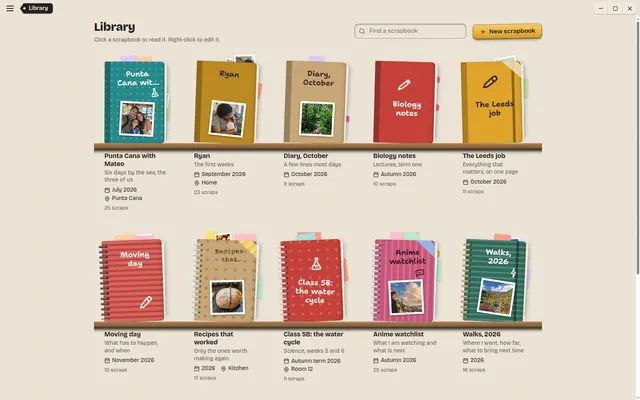
The Library is the home screen and always opens first. Every scrapbook stands on the shelf with its name, a short description, and a time and place if you gave it one.
- Click a scrapbook to read it.
- Right-click a scrapbook to open it for editing.
- Type in the search field to find one. The shelf narrows with every letter.
Search looks at names, descriptions, dates, places, page names and anything written on a page. When a match comes from inside a page, it tells you which page. When only one scrapbook is left, Enter opens it. Esc clears the search.
Reading a scrapbook
Reading mode is for looking, not changing. Nothing can be moved or removed by accident, which makes it safe to hand the laptop to a relative.
- Turn pages with the arrows at the edges of the page, or with ← and →.
- Videos play here, and only here. Everywhere else a video is a still picture.
- Voice notes and songs play when you press them. Nothing starts making noise on its own.
- A scrapbook can have one song of its own. The reader starts it from a button in the corner.
A page you never arranged by hand is dealt into a fresh collage each time the scrapbook is opened.
Edit
Edit is where things get added. Open the menu (the button at the left of the title bar) and choose Edit, or right-click a scrapbook on the shelf.
- Add: paste, drop files in, or write in the row at the bottom. The row also has a button each for pictures, videos and sound.
- Pick: click a scrap to select it.
- Move: drag it. It stops at the edge of the page, so nothing is ever cut off.
- Turn and resize: use the two handles on a selected scrap.
- Rewrite a note: select it and press Enter.
- Remove: select it and press Delete.
- Pages: add, name and switch pages from the menu.
Paste fast. The page is built for people who dump twenty things in and sort it out never.
Shuffle
Shuffle is the dice in the add row (it is in the menu too). Each press tosses every scrap into a new arrangement that still fits the screen. Sizes change, tilts change, notes resize their writing to match.
Two scraps tied with a thread stay next to each other through a shuffle, so a caption doesn't wander off from its photo.
Once you arrange a page by hand in Customize, it keeps that arrangement. Shuffle it and you are back to the dice.
Customize
Customize is the other half of editing: a panel on the right for arranging by hand and changing how things look. It shows one open section at a time, so it never turns into a wall of sliders.
- Page: 27 backgrounds, from cork and wood to old paper, a chalkboard, maths squares and an account book.
- Writing: 12 kinds of handwriting.
- Notes: 21 papers, including sticky notes, torn ruled pages, legal pad, receipts and coffee-stained paper.
- Holding things down: 14 tapes, plus pins, paper clips, bulldog clips, staples and pegs.
- Borders: a picture can have a border that follows its own outline: tight, rounded like a sticker, or rough like torn paper.
- Your own things: see Bring your own, just below.
The menu and the Customize panel can each be made wider or narrower by dragging their inner edge. Double-click the edge to put it back.
Bring your own
Customize can take in your own files. Each section that has a shelf of choices also has a button for adding yours.
| What | Files | Where to add it |
|---|---|---|
| Fonts | TTF, OTF, WOFF, WOFF2 | Writing, "Add a font from your computer" |
| Stickers and drawings | PNG, JPEG, GIF, WebP, AVIF, BMP, SVG | Stickers, on the Yours shelf |
| A page background | Any of the picture kinds above | Background, "Use your own picture" |
| A song for the scrapbook | MP3, M4A, OGG, WAV, FLAC | Music, "Add a song" |
You can add one file, several at once, or a whole folder ("Add a whole folder" on the Yours shelf). Fonts, pictures and backgrounds go into one pool that all your scrapbooks share, so a font added for one is there for the next. A song belongs to the scrapbook you added it to.
Your stuff, at the bottom of Customize, lists everything you have imported. Removing something there does not take it off pages that already use it.
A cut-out picture with see-through surroundings gets a sticker-style outline by itself when you add it.
One screen or endless
Each page is one of two sizes. You choose in Customize, under Page size.
| Size | What it does | Good for |
|---|---|---|
| One screen | Everything is dealt to fit the window. Add more and things get smaller. | Pages you want to see whole |
| Endless | The page runs on downward as far as you fill it. Scraps keep their natural size. | Long diaries, big collections |
Switching between them never moves or removes anything. ScrapBean speaks up when an endless page gets long or crowded enough to slow down or to be awkward to save as a PDF or picture.
Threads
A thread runs from any scrap to any other, pin to pin: a note to a photo, a photo to a video, a voice note to a sticker. Use a few and a page becomes a map of what belongs together.
- In Customize, click a scrap.
- Open Thread and press Tie a thread from here.
- Click the scrap it should run to.
Threads come in six colours. They follow their scraps when you move or shuffle them, and they are kept in saved web pages and PDFs. Remove a scrap and its threads go with it.
Stickers and calendars
There are four shelves of stickers in Customize: simple, doodles, colourful, and stamps. The colourful shelf has about 150, with faces and hands for reacting to things as well as food, school, weather and animals.
Any sticker can be made up as a postage stamp, a rubber stamp with your own words, a wax seal, a badge, or a cut-out with a white edge like one peeled from a printed sheet.
Your own sticker pictures go on the Yours shelf. That includes .webp stickers saved from a chat app.
Calendar stickers
A calendar sticker shows one month. You will find it on the Stamps shelf. On the page, click a day to circle it and click again to clear it. The arrows in its heading turn to the next month, and circles come back when you return to theirs.
Circling works in Edit and Customize. While reading, the calendar just sits there looking organised.
Themes
A theme gives a whole scrapbook one mood. It narrows what the random choices are made from (backgrounds, writing, papers, colours, tape, stickers), so pages stay uneven and hand-made but clearly belong together.
The themes are Anime, Manga, Café, Office, Beach, Weekend, Vacation, Rainforest, Desert, Garden, Night out, Vintage, School days, Maths, and Bills and money. You can also make your own by ticking what belongs in it. Your theme is then offered for every scrapbook.
Desks and settings
Settings are at the bottom of the menu.
- Desks: the app itself can be made of five sets of materials. Craft desk (kraft and mustard), Garden shed (seed-packet green and terracotta), Harbour (faded blue canvas and brass), Keepsake tin (blush and rose) and Workshop (grey card and one orange).
- Light and dark: every desk has both.
- Movement: turn it off and it really stops. Pages change at once, panels don't slide, videos wait to be started.
Your scraps and book covers look the same on every desk. Only the furniture changes.
Pictures, video and sound
| Kind | What works | Worth knowing |
|---|---|---|
| Pictures | JPEG, PNG, WebP, SVG, animated GIF | Very large pictures are kept as a smaller copy, 3200 pixels on the long side. GIFs are left alone. |
| Video | MP4, WebM, MOV | Silent unless you turn sound on for it in Customize. HEVC video (some phone recordings) does not play. |
| Sound | MP3, M4A, OGG, FLAC and similar | Becomes its own scrap, drawn as bars, a wave or a cassette. Apple Lossless does not play. |
| Links | Any web address | Paste it and it becomes a card you can click. |
HEIC and TIFF pictures are not supported. Export them as JPEG first.
A picture dragged out of a web page is downloaded and kept inside the scrapbook, so it is still there when the website isn't.
Plugins
A plugin is a small extra made by someone else that adds commands to the menu. Open the menu, then Plugins. Commands from the plugins you have switched on are listed there, each with the name of the plugin it came from, along with Manage plugins.
Adding and using one
- Choose Manage plugins, then Add a plugin from a folder, and pick the plugin's folder.
- It arrives switched off, with nothing allowed. Press On.
- Its commands appear in the menu. Press one.
- The first time it needs to read or change something, ScrapBean asks you. Choose Allow or Not now.
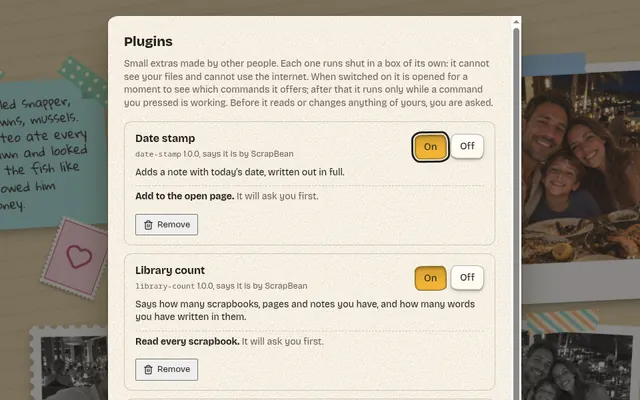
What you may be asked
| The question | What the plugin gets if you allow it |
|---|---|
| Read the open page | The words on the page you have open: its title, notes, captions, link addresses and sticker words |
| See the pictures on the open page | Those pictures, one at a time. Not videos or sound |
| Add to the open page | It may add notes and pictures, and change the words of notes. It cannot remove anything |
| Read every scrapbook | The name, description, date and place of every scrapbook, page names, and every note |
Once allowed, a plugin is not asked again for the same thing. To take it back, open Manage plugins and press Stop allowing. Replacing a plugin with a version that asks for more starts it again from nothing allowed.
The rules every plugin lives under
- It has no access to files on your computer and no way to use the internet.
- It runs only while a command you pressed is running, for at most 15 seconds, and is then shut down. Nothing runs in the background.
- It can add and change, never remove. Changes are refused while you are only reading a scrapbook.
- Everything one command changed is taken back by the Undo that appears when it finishes, and only that: anything you did yourself in the meantime stays.
- A plugin that misbehaves is stopped and says so on the Plugins page. Switch it off and on to give it another go.
Writing one
A plugin is a folder with a plugin.json that names it and lists what it may ask for, and a
JavaScript file that registers its commands. This is a whole plugin:
scrapbean.commands.register({
  id: 'count',
  title: 'Count the words on this page',
  async run() {
    const page = await scrapbean.page.read();
    const notes = page.scraps.filter((scrap) => scrap.kind === 'note');
    await scrapbean.notify(`This page has ${notes.length} notes.`);
  },
});
ScrapBean comes with five examples to copy from: Word count, Date stamp, Tidy notes, Library count and Picture converter, which makes JPEG, black-and-white or sepia copies of a page's pictures without anything leaving the plugin. The full guide for authors comes with the app.
There is no plugin shop yet. A plugin reaches you as a folder, from whoever wrote it.
Save a copy
Save a copy is in the menu. It makes something you can send to people who don't have ScrapBean.
- Web page: the whole scrapbook as a zip. Unzip it and open
index.htmlin any browser. Pictures, video, sound and fonts travel with it. - PDF: one sheet per page, the same shape as the page on screen.
- Picture: one page as a PNG.
A picture and a PDF can't move, so videos, GIFs and sound become stills. For a picture you can choose how many seconds to wait, which picks the moment they are caught at.
A PDF with lots of outlined pictures takes a little while. Wait for the message before you close the app.
Where your files live
All your scrapbooks are saved together on your computer: one file called book.json and a
media folder of pictures, video and sound beside it. Nothing is uploaded.
| System | Folder |
|---|---|
| Windows | %APPDATA%\ScrapBean |
| macOS | ~/Library/Application Support/ScrapBean |
| Linux | ~/.config/ScrapBean |
To back up, close ScrapBean and copy that folder somewhere safe. To move to a new computer, copy it into the same place there.
Don't keep your own files in the media folder. ScrapBean tidies it when it starts and removes anything no scrapbook uses.
Keys
| Where | Key | What it does |
|---|---|---|
| Anywhere you can edit | Ctrl + V or ⌘ + V | Paste a picture, a link or words onto the page |
| Add row | Enter | Put the note on the page. Shift + Enter starts a new line. |
| Reading | ← → | Turn the page |
| A selected scrap | Enter | Rewrite a note |
| A selected scrap | Arrow keys | Nudge it. Hold Shift for bigger steps. |
| A selected scrap | Delete | Remove it |
| Library search | Enter | Open the scrapbook, when one is left |
| Library search | Esc | Clear the search |
Still stuck? The questions on the home page cover the common ones.